

Operations | Monitoring | ITSM | DevOps | Cloud

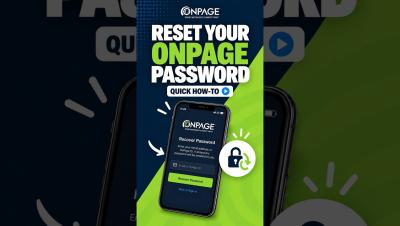
Recover Your OnPage Password: Quick How-To

Forgot your OnPage password? Enter your OnPage ID, click Next, and select Forgot Password. Submit the email address associated with your account or your OnPage ID, then click Recover Password. You’ll receive a temporary password by email, which you can use to log in and create a new password. If you don’t see the email, check your spam folder.

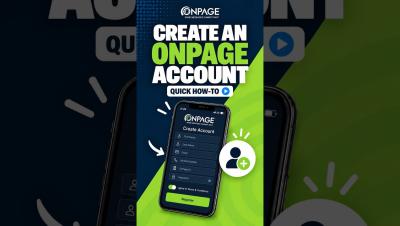
Create an OnPage Account: Quick How-To

Learn how to download the OnPage app and create a new account. This quick tutorial walks you through entering your account details, choosing a unique OnPage ID, creating a password, and completing registration. You’ll also learn how to enable notifications and critical alerts so important OnPage alerts can sound and appear on your lock screen—even when your iPhone is muted or Focus mode is enabled.

Why Most Security Firms Miss Their Incident Prevention Window

Security operations managers face a critical paradox: their teams are designed to respond to incidents, but the incidents that matter most are the ones that never happen. The difference between a security firm that prevents problems and one that merely responds to them comes down to a single, often-overlooked factor: whether they can see what their guards are actually doing in real time. When operators lack live visibility into patrol locations, guard status, and emerging threats, they're always one step behind.

Incident Chat and Virtual War Rooms: How to Improve Incident Response

How do you keep incident communication organized during a critical incident? Effective incident response requires more than getting an alert to the right person. Once responders are engaged, they need a shared place to exchange information, coordinate actions, and track decisions. A dedicated incident chat – or virtual incident war room – keeps that collaboration tied directly to the incident instead of scattering it across email, Microsoft Teams, Slack, text messages, and phone calls.

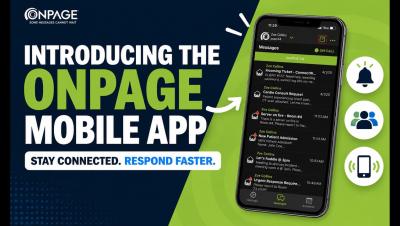
OnPage Mobile App User Guide

How to Use the OnPage Mobile App Get more out of the OnPage mobile app with this step-by-step walkthrough. In this video, we take an in-depth look at the app’s key features and show you how to use them, from managing alerts and responding to incidents to staying connected wherever you are. Whether you’re new to OnPage or looking for a quick refresher, this guide makes it easy to get started.

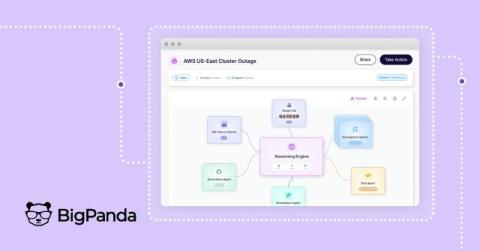
Introducing Swarm Investigation from BigPanda: Autonomous, multi-agent IT incident investigation

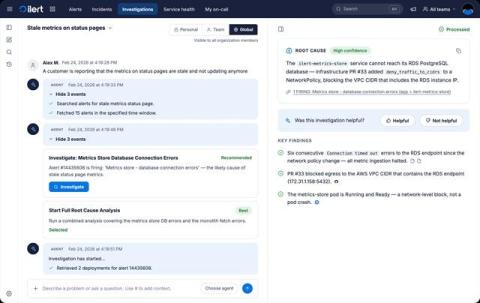
When a major incident opens, the opening minutes often become a race across disconnected tools and competing theories. One engineer checks a monitoring tool. Another scrolls through change records, looking for the one line that explains everything. A third pings Slack, asking if anyone has seen this before. While these are reasonable steps, taken one at a time, in sequence, they are far too slow.

PD Automation Runner: Automation That Finally Reaches Your On-Prem Stack

This blog post is part of PagerDuty’s ongoing series on how we’re helping customers navigate their journey towards autonomous operations. Read on to learn about how PD Automation Runner, now in Early Access, builds towards this vision. Your on-call engineer gets paged for a critical alert on a self-hosted Kubernetes cluster. If this were a cloud-hosted service, Workflow Actions and the SRE Agent would already be working the problem: pulling logs, checking health, surfacing a fix.

See It, Approve It, Revoke It: Scoped OAuth for Public Apps

This blog post is part of PagerDuty’s ongoing series on how we’re helping customers navigate their journey towards autonomous operations. Read on to learn about how Scoped OAuth for Public Apps, now in Early Access, builds towards this vision. Your security team asks a simple question during a routine review: which third-party apps can reach our PagerDuty data right now, and what exactly can they do with it?

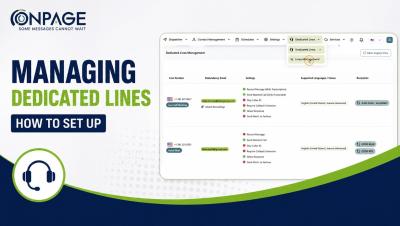
Managing Dedicated Lines in OnPage | How to Set up Dedicated Lines

Learn how to set up and manage Dedicated Lines in OnPage. In this step-by-step tutorial, we’ll walk through how to configure your Dedicated Lines to control how incoming calls are received, processed, and routed. You’ll learn how to:✓ Configure basic line details✓ Customize call processing behavior✓ Set up interactive routing menus✓ Add caller instructions and prompts✓ Review and save your Dedicated Line settings.