Operations | Monitoring | ITSM | DevOps | Cloud

Microsoft 365 Departed User Archiving: The Complete Guide for Enterprise IT

When an employee leaves your organisation, a clock starts ticking. Microsoft begins deleting their data — OneDrive files, Exchange Online emails, Teams conversations — within days of their account being disabled. For most large enterprises this is happening continuously, quietly, and without IT teams necessarily knowing until someone asks for data that no longer exists.

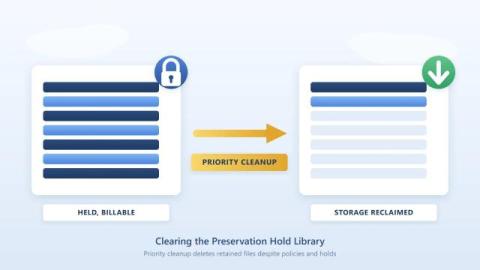
How to Avoid the SharePoint Preservation Hold Library PHL Storage Trap

Most executives assume that moving to Microsoft 365 simplifies cost control. Storage is “in the cloud”, usage is elastic, and governance is handled through policy. In reality, many organisations face a very different experience. They invest heavily in retention policies to meet legal and regulatory requirements, yet their SharePoint storage costs continue to rise year after year, even after large cleanup programs.

SharePoint Storage Limit Warning

When your Microsoft 365 tenant reaches the SharePoint storage limit, the impact is immediate. File uploads start failing, Teams sites stop provisioning, indexing slows down, and storage overage charges begin applying automatically. For organisations storing large volumes of documents, drawings, media files, or project data, hitting the SharePoint capacity threshold can become a recurring and expensive problem—especially when underlying retention policies prevent deletion.

Mastering the User Off-Boarding Process

When someone leaves your organisation — whether they resign, retire, or are let go — it’s easy to think the hard work is over. But the moment an employee’s last day arrives, a new risk window opens. If their access isn’t revoked properly or their data isn’t captured, organisations face security breaches, data loss, compliance issues, and rising costs. This is why a well-designed user off-boarding process is just as important as onboarding.

SharePoint Archiving Best Practices for Compliance

SharePoint Online has become the backbone of document management for many organizations. From project files to legal contracts, HR records to financial reports, it holds critical business data that grows relentlessly. But as usage increases, so do two unavoidable challenges: The dilemma? Simply deleting files may reduce storage bills, but it risks non-compliance. Retention policies may satisfy regulators, but they don’t stop your storage from exploding in cost.

Stop paying for Microsoft 365 licenses

When someone leaves your company, the natural step is to disable their Microsoft 365 account. But what many businesses don’t realize is that they often continue paying for that user’s license — just to retain access to their OneDrive files, Teams chats, and emails. Over time, this adds up to thousands in unnecessary costs. In this article, we’ll explain.

Departed M365 Users

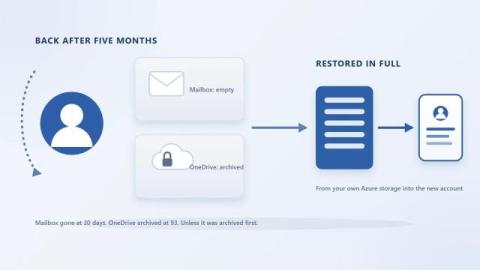
When someone leaves your organization, the first step IT usually takes is to disable their Microsoft 365 account. But have you ever stopped to ask: The answer might surprise you. If you’re not actively managing this, Microsoft will automatically delete that data — often in as little as 30 days. This post explains exactly what gets deleted (and when), why this is a problem, and what you can do to protect that data — without paying for unnecessary licenses.

SharePoint Analytics

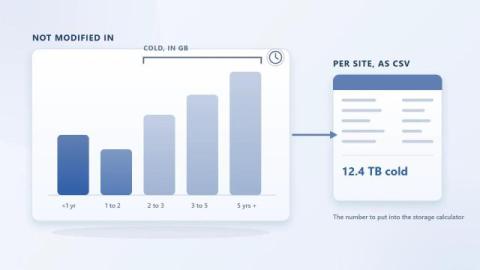
Managing SharePoint storage can be a complex task, especially as your organization’s data continues to grow. Keeping track of how much space each site or user is consuming, identifying trends, and ensuring your storage stays within allocated limits are crucial for effective SharePoint management. This is where SharePoint analytics tools can make a significant difference, and SharePoint Storage Explorer stands out as an essential free tool to simplify the process.