
Why the D Drive Is Missing and How to Make It Show Up

Image Source: depositphotos.com
You opened File Explorer one day, ready to dig into your D drive, but the D drive is missing, and that too without warning. Confusing, right? You don’t know what made the disk vanish and how you can make it show up. But don’t worry. Whatever the reasons are behind this issue, we’ll explain the most frequent ones in this post. Alongside, we’ll share the solutions to get back your local disk D that disappeared. Let’s begin!
Why Is D Drive Missing in Windows 11/10?
If the D drive is not showing up on Windows 11/10, it could be because of the following reasons:
- The D drive letter might be used by another device.
- Some Windows updates can change disk settings and make the D drive disappear.
- Drive may be hidden in system settings, so it doesn’t show in File Explorer.
- Outdated or faulty disk drivers can stop Windows from detecting the drive.
- The partition may have been deleted or formatted by mistake.
- Disk driver errors can cause detection issues.
- Wrong system settings may hide or block the drive.
- Viruses or malware can corrupt files and hide drives.
How to Recover Lost Data From Missing D Drive?
When Drive D is missing in Windows 10/11, obviously, you can’t access its data. However, you can rescue your crucial files with the help of a data recovery tool like Tenorshare 4DDG. It can scan for and reclaim lost files from inaccessible/unreadable storage mediums with a high recovery rate. Here’s how the tool can benefit you:
- This disk recovery tool reclaim 2000+ file formats lost due to malware, missing partitions, crashes, or boot failures.
- The software can restore files like photos, RAW files, videos, documents, and music.
- The app supports countless storage mediums, including HDDs, SSDs, SD cards, USBs, etc.
- The tool features a file preview for rescued files.
- A free version is available for Windows users.
- The app features a beginner-friendly interface.
Follow the steps beneath to rescue lost data with this tool if the local disk D disappeared from your computer:
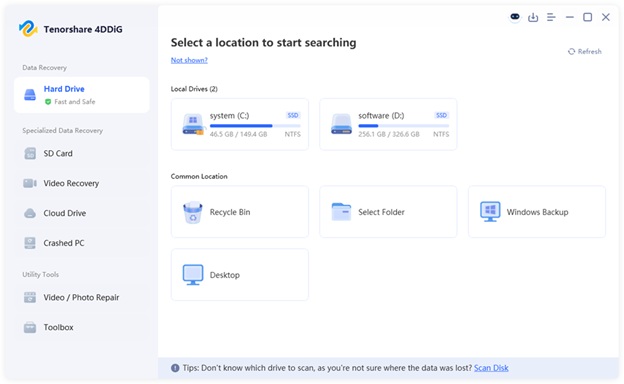
Step 1: Install and execute the disk recovery software on your computer. Then, select the D drive for recovery. Pick the file types to reclaim. Hit “Scan.”
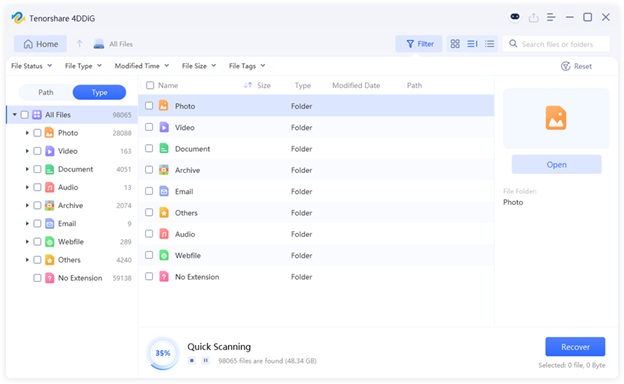
Step 2: Pause or stop the scan once you recover your desired files. Preview them or adjust filter tags or input keywords in the search field to find exact files.
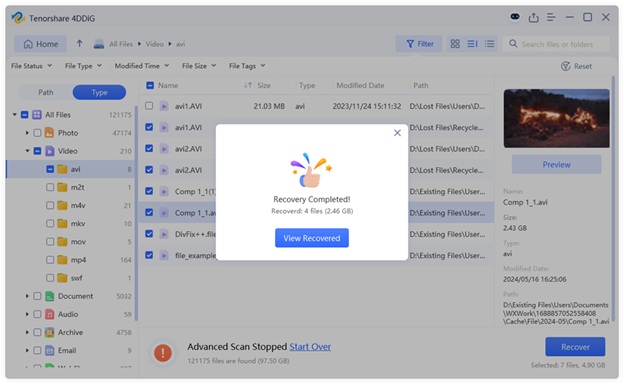
Step 3: Choose the recovered files you wish to save. Next, hit “Recover” to transfer them to your computer or cloud drive.
How to Fix D Drive Is Missing in Windows 11/10?
When the D drive is missing in Windows 10/11, here’s how you can troubleshoot this issue according to the reasons behind its disappearance:
Option A: Restart Your Computer
A sudden power loss can make the D drive suddenly missing in Windows 10/11 File Explorer. But a power cycle can give the drive a fresh start and help the system detect it again. If you’re using a laptop, removing the CMOS battery and power cycling it also restores BIOS settings to default. This can solve problems like the D drive suddenly missing if it’s caused by corrupted or incorrect settings, like SATA controller issues.
Option B: Use the Rescan Disks Feature
When Drive D is missing in Windows 11/10 File Explorer, it could be due to updates, driver or hardware changes, or temporary connection issues. If it appears in Disk Management, employ the “Rescan Disks” feature, which forces the system to detect all connected drives again. Here’s how to use it to troubleshoot the ‘D drive not showing up on Windows 10/11:
Step 1: Right-click the “Start Menu.” Then, choose “Disk Management.”
Step 2: From the above menu, select “Action.” Then, tap “Rescan Disks.” Wait a few moments for Windows to scan all drives
Option C: Perform a System Restore
The System Restore is a Windows-embedded tool that can troubleshoot the drive D missing in Windows 11/10 by going back in time. Then, it will restore your system to a previous state when the D disk was visible.
It may also aid in recovering from malware or partition changes, though it doesn’t restore personal files. However, you must’ve activated System Restore before the local disk D disappeared. Here’s how to perform a System Restore:
Step 1: Type “con” in the “Windows Search” on the Desktop. Then, execute “Control Panel.”
Step 2: Choose “Open System Restore.” Click “Next.”
Step 3: Select a restore point from the list when the D drive was visible on your computer. Hit “Next.
Step 4: Click “Finish.” Then, hit “Yes.” Windows will reboot. After which, you can inspect whether the D drive is showing up in File Explorer.
Option D: Reveal the Hidden D Drive
Sometimes the Drive D isn’t missing in Windows 10/11 but just hidden by settings, software, or user error. Malware, group policies, or registry changes can also hide it from File Explorer. Since the drive is still there and functional, unhiding it makes it visible again and solves the problem. To do so:
Step 1: Open File Explorer. Then, double-tap “This PC.”
Step 2: Click “View.’ Then, choose “Options.” Select “Change folder and search options.”
Step 3: Tick mark “Show hidden files, folders, and drives.” Hit “OK.”
Option E: Assign a New Drive Letter
Windows displays drives with letters such as C: or D:, and in the absence of them, the drive will not be displayed in File Explorer.In some cases, the D letter might be stolen by another device, creating a conflict with it, and resulting in Drive D missing in Windows 10/11. But you can manually give a free drive letter to troubleshoot the issue, if the disk appears in Disk Management:
Step 1: Right-click the “Start Menu.” Then, choose “Disk Management.”
Step 2: Then, right-click the D drive, which might display as unallocated or without a letter. Choose “Change Drive Letter and Paths.”
Step 3: Tap “Add.” Next, select “Assign the following drive letter.” Pick a driver letter.
Step 4: Reboot your PC. Afterward, check whether the D drive shows up.
Option F: Reinstall the D Drive Driver
When the D drive driver is corrupted, obsolete, or incorrectly installed, it may lead to the D drive not showing up in Windows 11/10. However, reinstalling the D disk driver replaces the corrupted files and fixes compatibility errors with other drivers. Here’s how:
Step 1: Right-click the “Start Menu.” Next, open “Device Manager.”
Step 2: Double-tap “Disk drives.” This will expand it. Right-click your D disk driver. Then, choose “Uninstall device.” Hit “Uninstall.”
Step 3: Then, head to the “Action” menu. Choose “Scan for hardware changes.” Reboot your computer.
Option G: Uninstall Windows Update
The Windows updates may sometimes result in bugs, driver incompatibility, or even corrupt system files, which cause the ‘D drive suddenly missing’ problem.These problems can prevent Windows from recognizing the drive. But removing the problematic update can restore the system and troubleshoot the problem. Here’s how:
Step 1: Right-click the “Start Menu.” Then, open “Settings.”
Step 2: Head to “Windows Update.” Next, choose “Update history.”
Step 3: Move down. After this, select “Uninstall updates.”
Step 4: Click “Uninstall” next to the latest update. Restart your PC if it doesn’t reboot automatically.
Option H: Check and Update BIOS
The BIOS controls how your PC detects and communicates with drives. If it’s outdated, it may not support newer storage devices or could have bugs affecting SATA controllers and the boot order. This could result in the Drive D missing in Windows 11/10 Disk Management.
So, you’ll need to update the BIOS or UEFI to fix these issues and help the D drive get recognized. But first, check if your D drive shows up in BIOS. Also, updating the D drive in BIOS might be different based on the manufacturer. Some manufacturers also provide utilities to update the BIOS directly from Windows.
Final Words
When the D drive is missing in Windows 10/11, it could have been the result of a drive letter collision or some obscure partitions. This issue could also be caused by a driver update, BIOS, or hardware problem.
You can troubleshoot these malfunctions by merely restarting your computer, rescanning the D disk, assigning/reassigning the drive letter, or re-updating the BIOS. Nevertheless, it is important to recover your crucial data first using a tool such as 4DDiG Data Recovery before using any solution. It can retrieve data from inaccessible/unreadable storage mediums with high success.