
How to Verify Official Productivity Software Sources Before Installation
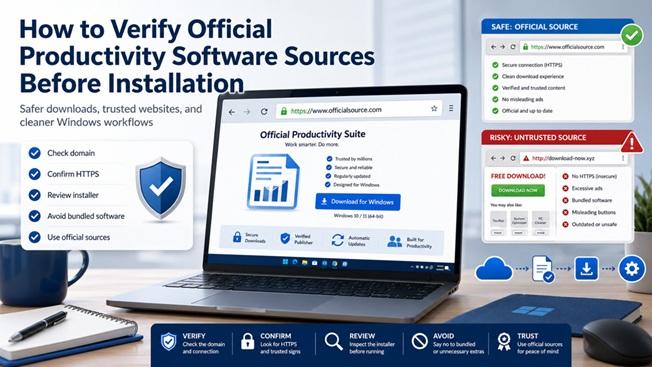
Productivity software is part of almost every modern workplace. Teams rely on document editors, spreadsheet tools, presentation software, PDF utilities, collaboration apps, and cloud-based platforms to complete daily work. Because these tools are so common, many users install them quickly without spending enough time checking where the installer came from.
That shortcut can create unnecessary risk. A productivity tool may look familiar, but an unsafe download source can expose a Windows device to bundled software, unwanted browser changes, modified installers, fake update prompts, or credential-stealing malware. For IT teams, the issue is not only whether the software works. The bigger question is whether the source is trustworthy, consistent, and suitable for a managed work environment.
Verifying official software sources before installation is a practical habit that helps reduce security risks and workflow interruptions. It is especially important for Windows users because many business applications are still installed through executable files, setup packages, or downloaded installers. A few checks before installation can prevent larger problems later.
Why Source Verification Matters
Many software-related problems begin before the application is ever opened. A user searches for a tool, clicks a high-ranking result or advertisement, downloads an installer, and completes setup without confirming the source. In some cases, the software may still run normally. However, the installer may also include additional components, outdated files, aggressive notifications, or unnecessary permissions.
For individual users, this can lead to browser hijacking, system slowdowns, privacy exposure, or unwanted background processes. For organizations, the risk is broader. An unsafe installer can affect endpoint security, data handling, compliance, and employee productivity.
Official source verification is therefore not just an IT security task. It is part of reliable workplace operations. When employees know how to confirm where software comes from, teams can reduce avoidable incidents and maintain cleaner, more predictable Windows environments.
Start with the Domain Name
The domain name is one of the first things users should check before downloading productivity software. Fake or low-quality sites often imitate recognizable brands by using similar spellings, extra words, unusual extensions, or misleading page titles. A domain may look close enough at a glance, but small differences can matter.
Before downloading, users should look carefully at the full domain in the browser address bar. They should avoid relying only on page design, logo placement, or search result titles. A website can copy a familiar visual style while still being unrelated to the actual software provider.
For office software searches, users may compare known product names, official download pages, and trusted informational resources. For example, someone researching wps office should still check whether the page they are using clearly matches the expected product, source, and download path rather than clicking the first available installer they find.
Check HTTPS, but Do Not Rely on It Alone
HTTPS is a basic requirement for any software download page. It helps protect data in transit and confirms that the connection between the browser and the website is encrypted. However, HTTPS alone does not prove that a website is official, safe, or trustworthy.
Modern fake websites can also use HTTPS. This means users should treat HTTPS as one necessary check, not the final decision. A safe download process should include several signals: a sensible domain, clear product information, consistent branding, transparent file details, and no suspicious redirect behavior.
If a download page triggers multiple redirects, opens pop-ups, asks users to install browser extensions, or pushes unrelated software, it should be treated with caution. Reliable productivity software pages usually provide a direct and clear installation path without unnecessary distractions.
Review the Download Page Carefully
A trustworthy download page should be easy to understand. It should explain what is being downloaded, which platform it supports, and what version is available. For Windows users, the page should make it clear whether the installer is for Windows 10, Windows 11, or other supported systems.
Users should be cautious when a page contains several large download buttons, especially if some of them are advertisements. On low-quality download sites, the most visible button is not always the correct one. This can lead users to download an unrelated file or an installer wrapper that adds unwanted software.
It is also worth checking whether the page describes the product clearly. Pages with vague descriptions, excessive keyword repetition, broken language, or unrelated software recommendations may not be reliable sources. A professional download page should help users understand the software, not pressure them into a rushed installation.
Watch for Bundled Installers
Bundled installers are a common issue in software downloads. They may include the intended application but also offer additional programs, browser toolbars, search changes, trial utilities, or system cleaners. Sometimes these additions are pre-selected during installation, causing users to accept them without noticing.
During setup, users should read each screen carefully instead of repeatedly clicking “Next.” If the installer offers unrelated software, changes default browser settings, or asks for unnecessary permissions, the installation should be reconsidered.
IT teams can reduce this risk by maintaining an approved software list and providing employees with clear internal instructions. When users know where to download approved tools and which installation options to avoid, the organization becomes less dependent on individual judgment during every setup process.
Confirm the Official Website Entry Point
For many users, the safest approach is to begin from a verified official website or a trusted internal software portal. This reduces the chance of landing on third-party pages that repackage installers or use confusing advertisements.
When checking office software sources, users may need to verify the official website entry point before downloading. A reference such as wps 官方网站 can be used as part of the broader verification process when users are trying to distinguish official-looking sources from unrelated download pages.
Organizations should document official entry points for commonly used tools. This is especially useful for onboarding, device replacement, remote work setup, and employee self-service support. Instead of asking users to search the web independently, IT teams can provide a controlled list of approved sources.
Check File Names and Installer Behavior
After downloading an installer, users should inspect the file before running it. A file name should generally match the product and platform. Strange file names, compressed archives from unknown sources, or installers that do not clearly identify the software should be treated carefully.
Users should also pay attention to system prompts. If the installer requests administrator permission, that may be normal for some desktop applications, but it should still match the expected setup behavior. If an installer asks for unusual access, triggers warnings, or attempts to install unrelated components, users should stop and report it to IT.
For managed environments, endpoint protection tools and application control policies can help enforce safer installation behavior. However, user awareness remains important because not every risky download is automatically blocked.
Avoid Cracked or Modified Versions
Cracked software, unofficial portable builds, and modified installers are high-risk sources. They may appear attractive because they promise free access, unlocked features, or simplified installation. In reality, they can introduce malware, unstable performance, data exposure, and legal problems.
Productivity software often handles sensitive business content, including financial spreadsheets, client proposals, contracts, and internal reports. Using an untrusted version of such software can put important files at risk. Teams should make it clear that convenience is not a valid reason to use unofficial software builds.
Create a Simple Software Installation Policy
Source verification works best when it becomes part of a repeatable policy. The policy does not need to be complicated. A practical version can answer a few essential questions: Which tools are approved? Where should employees download them? Who can install software on work devices? What should users do if they are unsure about a source?
This policy should be easy to find and written in plain language. Long technical documents are often ignored by non-technical employees. A short checklist, internal knowledge base page, or onboarding guide can be more effective.
For Windows teams, the policy should also explain update behavior. Users need to know whether updates happen automatically, through the application, through IT management tools, or through a manual download process. Unclear update habits can lead employees to click fake update prompts from unsafe websites.
Train Employees to Pause Before Installing
The most important behavior is simple: pause before installing. Users should take a moment to confirm the source, review the page, check the installer, and ask for help if something looks unusual.
This small delay can prevent large operational problems. It can reduce support tickets, avoid malware cleanup, prevent document workflow interruptions, and help teams maintain more reliable devices.
Training should be practical rather than theoretical. Screenshots of safe and unsafe download pages, examples of misleading buttons, and short installation checklists can help employees build better habits quickly.
Conclusion
Verifying official productivity software sources before installation is a practical safeguard for Windows users and workplace IT teams. It helps reduce the risks associated with fake download pages, bundled installers, modified software, and unsafe update prompts.
A safer installation process begins with careful source checking: review the domain, confirm HTTPS, inspect the download page, avoid bundled offers, verify official entry points, and pay attention to installer behavior. When these habits become part of daily operations, teams can maintain cleaner devices, safer workflows, and more reliable productivity environments.