
How to Connect Orca Slicer to a Printer (Step by Step)
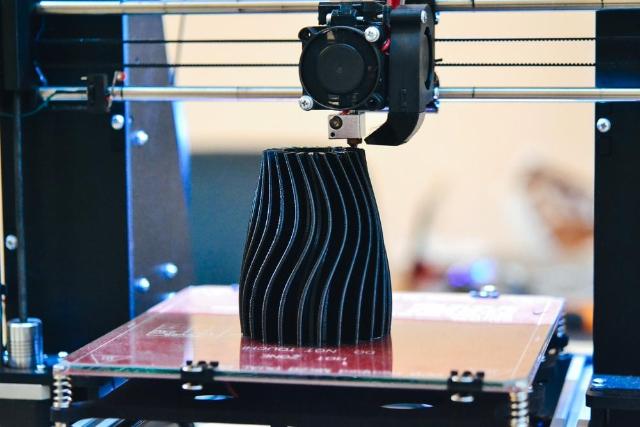
Image Source: depositphotos.com
Orca Slicer (also written as OrcaSlicer) is a popular, advanced, and easy-to-use 3D printer slicer that is known for its extraordinary features, high-quality G-code conversion, and user-friendly interface. The tool has many advanced settings and features that make it easier for you to customize the print settings so you can get the best results.
However, if you connect the Orca Slicer incorrectly, it can lead to failed prints, connection errors, and wrong prints. Therefore, in this article, we’ll teach you step by step how to connect Orca Slicer to the printer so you can avoid errors and get the printer and the tool ready for the best prints.
How to Connect Orca Slicer to Printer?
A number of Orca Slicer users end up connecting it incorrectly to their 3D printer, which then leads to annoying errors such as failed or wrong prints and connection issues that waste a lot of time.
The best way is to connect your Orca Slicer to your printer by following these steps. It’ll ensure that you don’t get any issues and that Orca works seamlessly with the printer using the settings you set.
System Requirements
These are the system requirements that you need to meet to connect your Orca slicer to your 3D printer.
|
Requirement |
Description |
|
USB Cable (Type-A to Type-B) |
Needed to connect your 3D printer directly to your computer for data transfer. |
|
Computer with Orca Slicer Installed |
Make sure the latest version of OrcaSlicer is downloaded and properly installed on your PC or laptop. |
|
3D printer with Correct Drivers |
Ensure your printer has the right drivers installed so it can communicate smoothly with Orca Slicer. |
Step 1: Open OrcaSlicer
Start OrcaSlicer on your computer and get ready to add your printer. It’s your starting point before any setup.
Step 2: Go to Printer Options
Click on the gear icon or the Printer dropdown. This is where you’ll find all the printer setup choices.
Step 3: Select a Preloaded Printer
Look through the list and pick your printer model. Click on the model, check the box and the Orca slicer will automatically load the right settings for your printer.
Step 4: Choose the Nozzle and Extruder
Choose the number of the extruders you have and the specific nozzle size that you want to work with. Make sure these match your printer for smooth printing.
Step 5: Add a Custom Printer (if needed)
Some users may not see their printer listed in the list, which is okay. You can click on “Create 3D printer” and put in the details like bed size, shape, and firmware type.
Step 6: Set Bed Dimensions and Origin
Fill in the correct bed measurements and home position. This helps the slicer place your prints accurately.
Step 7: Edit Start and End G-code
Add or adjust your printer’s start and end G-code. These codes tell your printer how to begin and end each print.
Step 8: Pick Filament Presets
Choose or create a filament profile that matches your material. It includes temperature, flow, and retraction settings.
Step 9: Set Up Print Settings
Choose how your model will be printed. Adjust the layer height, print speed, and infill amount. Save these settings so you can easily use them again later.
Step 10: Save Your Full Setup
Combine everything you have set, including the printer, filament, and print settings. Save it as one complete profile to make future printing faster and easier.
Step 11: Connect to the Printer
Connect your printer using a USB cable or through Wi-Fi. Check that the connection is working properly before you start printing.
Step 12: Do a Test Print
Begin with a small model to test your setup. Keep an eye on the first few layers to make sure the printer is working as expected.
Step 13: Troubleshoot if Needed
If the printer does not print right, look over your connections, firmware, and bed leveling. Fixing small issues now helps avoid bigger printing problems later.
Step 14: Start Larger Prints
Once your test works fine, load your main model, slice it, and begin printing. Enjoy your smooth OrcaSlicer setup!
These are the steps that you need to follow to connect your Orca slicer to your printer. It’s easy, peasy!
Final Words
Setting up Orca Slicer with your 3D printer is simple once you follow these steps. From adding your printer and choosing the right settings to doing a test print, each step helps you get better results. Take your time during setup so your prints come out smooth and accurate. Once everything works properly, you can start printing bigger models with confidence. Orca Slicer makes the process easy, reliable, and fun for every maker. Enjoy your 3D printing journey and keep exploring new features to get the most out of your printer and your creativity.