
Top Ways to Recover Emptied Trash on Mac [2026]
![Top Ways to Recover Emptied Trash on Mac [2026]](/sites/default/files/images/depositphotos_579597438_s.jpg "Top Ways to Recover Emptied Trash on Mac [2026]")
Image Source: depositphotos.com
Have you ever wondered, "Can I recover emptied Trash on Mac" or "How to recover files after emptying the Trash on Mac?" You're not alone. It's easy to assume that everything in the Trash is safe to delete, only to realize later that an important document or photo was removed by accident. If you're dealing with data loss, don't worry as all hope is not lost. Here, we'll explore five tried-and-tested methods to recover emptied Trash on Mac, with or without software.
Part 1: Can Files Be Recovered Once the Mac Trash Is Emptied?
It's a question that keeps Mac users awake at night: "Can I recover emptied Trash on a Mac?" The answer might surprise you. Even if you empty the Trash, your files don't actually disappear right away. They're marked as expendable, but their data lingers on until new data overwrites it.
As soon as you realize you've emptied the Trash and want to recover files, stop using your Mac for any tasks immediately. This action will significantly reduce the chances of new data overwriting the deleted files.
Note: This principle applies mainly to HDDs (hard disk drives). Most Macs today use SSDs instead of traditional hard drives (HDDs). And while both store deleted files for a limited time, the way they handle those files after deletion is quite different.
Part 2: Ultimate Solution to Recover Emptied Trash on Mac
If you are not tech-savvy, or just want to avoid investing too much time and effort in searching for "how to recover deleted trash on Mac", 4DDiG Mac will be the best choice for you. This Mac data recovery software combines expertise and simplicity to retrieve files from various scenarios with ease.Whether it's accidental deletions, emptied trash, virus attacks, or system crashes, 4DDiG proves its mettle.
Whether it's your cherished photos, crucial documents, or essential Excel and Word files, 4DDiG can effortlessly recover them, alleviating your concerns about data loss.
Here is a step-by-step guide on how to recover items from emptied Trash on Mac with the aid of 4DDiG:
Step 1: Open 4DDiG Mac after installation and choose a destination – in this case, your emptied Trash. Simply click the "Scan" button to initiate the scanning process.

Step 2.Once the scanning is complete, the software presents you with a comprehensive scan result. You can tap on specific file types to get a more detailed preview before recovery.

Step 3.Finally, select the files you need and simply click the "Recover" button.
Part 3: How to Recover Emptied Trash on Mac without Software?
Option A: Recover Emptied Trash on Mac Via iCloud
If you're wondering how to recover emptied trash on Mac without software, iCloud will be the first option that comes to mind. With just a few clicks, you can easily recover lost files within seconds. Here is how:
Step 1: Open your browser and head over to iCloud.com, then sign in with your Apple ID.
Step 2: Click the “Drive” option and navigate to the "Recently Deleted" section. You'll see a collection of files that have been removed from your Mac's trash within the past 30 days.
Step 3: Then, select your lost files and simply click on the “Recover” button.
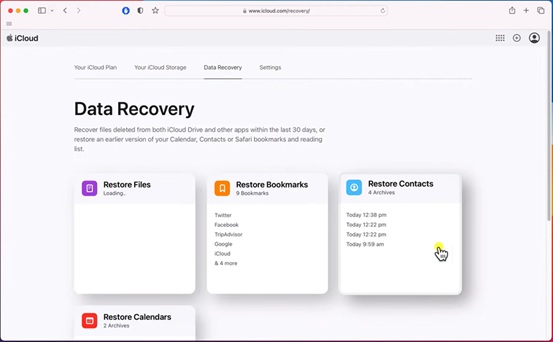
Step 4: Alternatively, scroll down and click on the “Data Recovery” option.
Step 5: Next, click “Restore Files.” It will automatically search for recoverable files.
Option B: Recover Emptied Trash on Mac from Google Drive
Some Mac users prefer to use Google Drive to store their important files. In fact, as long as you have a good habit of backing up files, you can recover files from emptied Trash on Mac anytime, anywhere. Follow the steps below:
Step 1:Go to drive.google.com and Sign in with the Google account.
Step 2:Click on the “My Drive” Section and locate your deleted files. Then, right-click on it and select “download.”
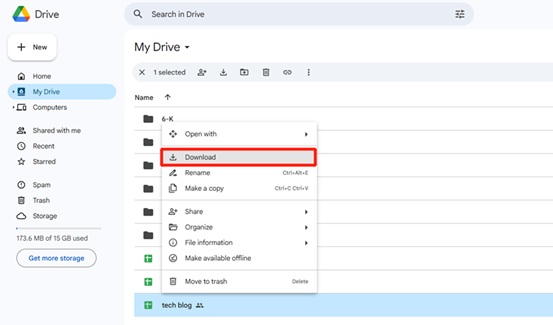
Step 3:At the same time, you can click on the “Trash” section. You may have deleted your files from Google Drive.
Option C: Recover Emptied Trash on Mac Using a Time Machine Backup
If you have enabled the Time Machine feature beforehand, you can bid farewell to worries about how to recover emptied trash on Mac without software. Time Machine stands as one of Mac's most valuable built-in features, diligently performing automatic backups to ensure the safety of your data. Here's how to use it to retrieve your missing files:
Step 1: Ensure your external backup drive is connected to your Mac. Time Machine requires a dedicated backup drive to function effectively.
Step 2: Click on the Time Machine icon in the menu bar or open it from System Preferences. A visual timeline will appear, displaying your backups.
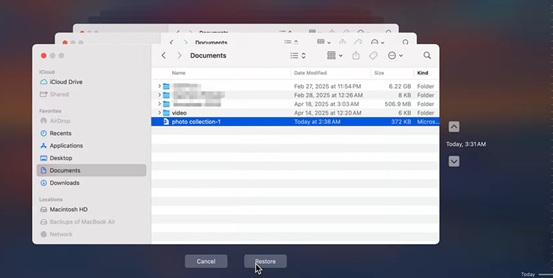
Step 3: Use the timeline to navigate to the backup taken just before you emptied the Trash. The further back you go, the better your chances of recovering the deleted files.
Step 4:Once you've pinpointed the backup, navigate through your file system to locate the files you want to recover. Select them and click the "Restore" button.
Note: If your last backup was made after deleting the files, or if you don’t have a backup drive connected, this method won’t be helpful.
Option D: Contact a Data Recovery Lab
When all above methods fall short, reputable data recovery services can indeed serve as the last method to recover emptied trash on Mac. This is usually the most
expensive way to get back permanently deleted files, but sometimes it's the only choice you have. If you have enough budget, follow the steps below:
Step 1: Contact providers and receive a cost estimate.
Step 2: Send the storage device for evaluation and recovery.
Step 3: Technicians recover and verify your data.
Step 4: Receive the recovered data and make the payment. A reputable data recovery service will not charge you anything if the data is not recovered.
Part 4: Tips to Avoid Losing Files on Mac Again
If you want to avoid asking questions like "How to recover deleted trash on Mac" again in the Apple Support Community, preventing data loss becomes a top priority. Here are some useful tips for you:
- Take a moment to double-check the files in the Trash before emptying it.
- Store critical files on cloud platforms like iCloud, Google Drive, or Dropbox.
- Install reliable data recovery software like 4DDiG that can help retrieve deleted files even after the Trash is emptied.
- Some applications, like Microsoft Office and Google Workspace, offer file version history, allowing you to revert to previous versions of a document.
Bottom Line
Now, "how to recover files from emptied Trash on Mac" is no longer a question that haunts you. In this guide, whether you want to know about professional data recovery tools or how to recover emptied Trash on Mac without software, we've got you covered. However, please remember that prevention through regular backups is the key to ensuring your valuable data remains safe and easily recoverable.
How to Recover Deleted Trash on Mac FAQ
Q1: What should I do immediately after accidentally emptying Trash?
Stop using your Mac right away—avoid downloading, saving, or installing anything new. The less you use your drive, the better the chances that recovery software can find and restore your files.
Q2: Where do deleted files go after I empty the Trash on Mac?
When you delete files on a Mac, you usually move the files to the Trash. If you simply delete the file from the Trash, the file can be recovered effortlessly. But if you empty the Trash, the reference to the file is removed and the space is marked as free for new data.
Q3: How do I recover emptied Trash on Mac without Time Machine?
In such cases, you can use iCloud to recover emptied trash on Mac. Here is how:
1.visit iCloud.com or iCloud Drive app.
2.Click on “Drive” and go to the "Recently Deleted" folder.
3.Or click on “Data Recovery.”
4.Select “Restore files” to search for recoverable files automatically.