
Operations | Monitoring | ITSM | DevOps | Cloud

Cyber Security is escalating on both sides

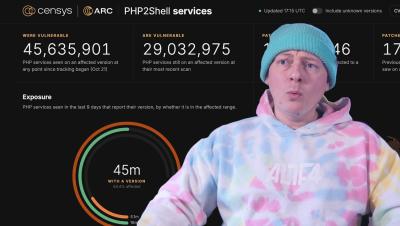
The nature of cyber security is changing. In this video, I do a brief recap of a few of the compromises of the past couple weeks as well as highlight how our role as engineers is changing. Attackers have an easier time than ever in watching repos for changes to exploit 0-day vulnerabilities. But, it isn't all doom and gloom as long as we put in the effort. AI is creating a bit of an arms race between attackers and maintainers of sites and services, but there are actually more powerful tools available to defenders through exclusive programs like Daybreak, Glasswing, etc.

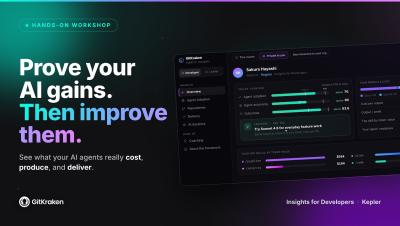
Prove Your AI Gains, Then Improve Them | GitKraken Workshop

Everyone feels faster with AI, but almost nobody can prove it. In this hands-on GitKraken workshop, Jeremy Castile, Scott Ferguson, and Justin Roberts show you how to get a real read on your AI agents: what they actually cost, what they produce, and whether they’re making your team faster, then how to take that data and improve it. You’ll see how to read an agentic workflow across adoption, autonomy, activity, cost, and outcomes in real time, how to spot where you’re overspending, and how to run and right-size multiple agents so you scale your agent work without scaling the bill.

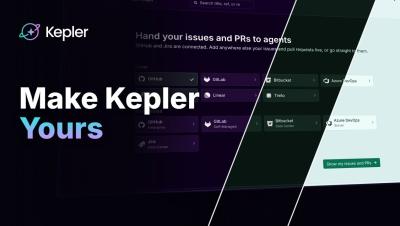
Make Kepler Yours: Create a Theme and Share It in the Gallery

In Kepler ADE by GitKraken, you can make your own theme. Describe the look you want in plain words, and an agent builds it for you. How it works: Open Settings, go to Appearance, and click Create a theme Type the look you want. In this video I asked for gold and maroon The agent drafts the theme and checks every color for contrast before it saves. Then pick your new theme under Your themes Keep your theme for yourself, or share it with a pull request to gitkraken/kepler-themes so it can join the public gallery.

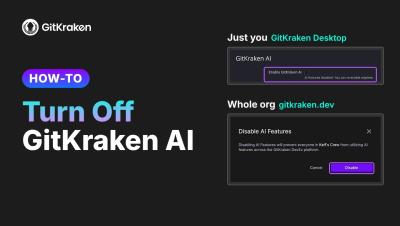
How to Turn Off GitKraken AI (GitKraken Desktop and Organization-Wide)

Let's talk about 2 ways to turn off GitKraken AI: for your own account in GitKraken Desktop, and for everyone in your organization from gitkraken.dev. Turn off GitKraken AI for your account (GitKraken Desktop) Turn off GitKraken AI for your organization (admins and owners) Optional: limit AI providers On the same Security controls page, under Enforce AI providers, turn off any provider you don't want your organization to use.

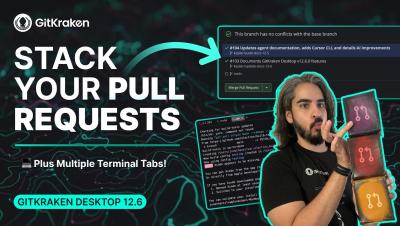
GitKraken Desktop 12.6 Release: Stacked GitHub PRs, Multiple Terminal Tabs

Ready to interact with the stack? GitKraken Desktop 12.6 makes it easier than ever to ship large features and manage multi-task terminal workflows without context switching or losing track of your work. What's new in 12.6: Stacked GitHub Pull Requests: Start a pull request stack against a branch that already has an open PR to break large feature branches into smaller pieces. Stack Visibility Everywhere: View stack position, status, and sequence numbers across the Left Panel PR list, the Pull Request view, and the Commit Graph.

GitKraken Insights | AI feels faster. Make sure it is.

AI feels faster. Make sure it is. GitKraken Insights shows engineering leaders the real cost, output, and ROI of their AI investment, per tool, per team, per developer. Then it gives every developer their own data and coaching to get more from it. 84% of developers say they feel more productive with AI. Only about one in five can actually measure the impact.* With GitKraken Insights, you can: We run on it ourselves: GitKraken's own engineering org reached 2.53x output in six months.