

Operations | Monitoring | ITSM | DevOps | Cloud

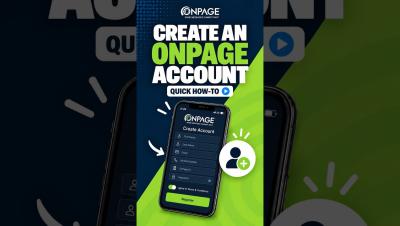
Create an OnPage Account: Quick How-To

Learn how to download the OnPage app and create a new account. This quick tutorial walks you through entering your account details, choosing a unique OnPage ID, creating a password, and completing registration. You’ll also learn how to enable notifications and critical alerts so important OnPage alerts can sound and appear on your lock screen—even when your iPhone is muted or Focus mode is enabled.

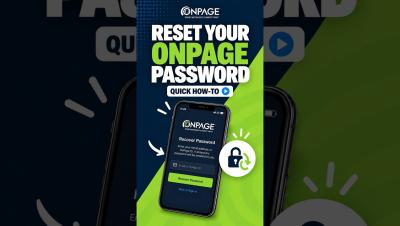
Recover Your OnPage Password: Quick How-To

Forgot your OnPage password? Enter your OnPage ID, click Next, and select Forgot Password. Submit the email address associated with your account or your OnPage ID, then click Recover Password. You’ll receive a temporary password by email, which you can use to log in and create a new password. If you don’t see the email, check your spam folder.

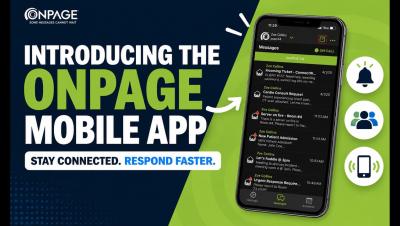
OnPage Mobile App User Guide

How to Use the OnPage Mobile App Get more out of the OnPage mobile app with this step-by-step walkthrough. In this video, we take an in-depth look at the app’s key features and show you how to use them, from managing alerts and responding to incidents to staying connected wherever you are. Whether you’re new to OnPage or looking for a quick refresher, this guide makes it easy to get started.

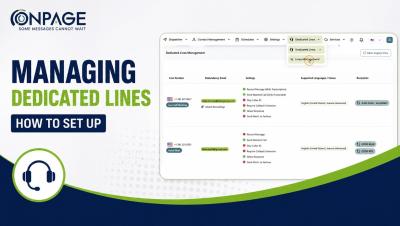
Managing Dedicated Lines in OnPage | How to Set up Dedicated Lines

Learn how to set up and manage Dedicated Lines in OnPage. In this step-by-step tutorial, we’ll walk through how to configure your Dedicated Lines to control how incoming calls are received, processed, and routed. You’ll learn how to:✓ Configure basic line details✓ Customize call processing behavior✓ Set up interactive routing menus✓ Add caller instructions and prompts✓ Review and save your Dedicated Line settings.