
My PC Kept Freezing During Startup: Here's the One-Click Fix That Saved My Workflow

Image Source: depositphotos.com
Nothing is more frustrating than a PC that freezes every time it starts. After trying several basic solutions without success, I used a PC cleaner that cleaned unnecessary files, fixed system problems, and improved startup performance.
In this article, I explain why PCs freeze during startup, the one-click fix, features, steps, manual troubleshooting, comparison, and key symptoms of serious startup issues.
Reasons Behind Why PCs Freeze During Startup
A combination of system, software, and hardware issues can contribute to startup freezes. Identifying the root cause makes it easier to apply the right fix and improve overall PC stability.
These issues can include:
- When numerous programs start automatically, they place heavy demands on system resources and may lead to startup freezes.
- Missing or damaged system files can stop Windows from loading correctly during boot.
- Faulty graphics, audio, or chipset drivers can cause the system to crash during startup.
- Harmful software can interfere with the boot process and cause system freezes.
- A nearly full or failing drive cannot handle essential startup operations smoothly, leading to delays or freezes.
- Accumulated temporary files and outdated cache can slow down startup and cause system instability.
Advanced SystemCare 19: The One-Click Fix for My PC Freezing During Startup
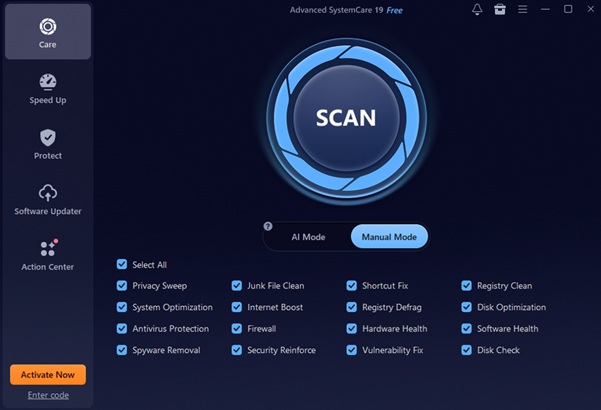
Advanced SystemCare 19 is a powerful PC cleaner that helps fix startup freezes, slow boot times, and other common performance issues. This user-friendly Windows cleaner scans for junk files, registry errors, and startup bottlenecks that can affect system stability. With its one-click optimization feature, it automatically cleans, repairs, and optimizes your PC. Its startup management and performance-boosting tools help deliver faster boot times, better responsiveness, and a smoother computing experience.
Key Features
- Lightweight: Runs without slowing your PC.
- Startup Optimizer: Disables or delays startup apps to speed up boot.
- 1-Click Scan: Finds and fixes junk, errors, and startup issues.
- Deep Clean: Removes junk, registry errors, and privacy traces.
- Turbo Boost: Stops non-essential services for max performance.
- System Tools: Improves disk, internet, and system speed.
My experience of using Advanced SystemCare 19
Before using it, my PC would freeze for several minutes every time I started it, making it hard to get started quickly. The system also felt slow and unresponsive right after boot due to too many background processes and unnecessary startup load.
The tool improved performance by cleaning unnecessary files, reducing background load, and optimizing startup behavior. As a result, daily computing became faster, smoother, and more efficient.
Step-by-step guide to use Advanced SystemCare 19.
Step 1. Start this Windows cleaner, select AI Mode or Manual Mode, and run a scan to check for startup slowdowns, system errors, and unnecessary files.
Step 2. Examine the scan results and choose Fix/Clean to remove clutter, repair errors, and improve system performance.
Step 3. Go to Speed Up → Startup Optimizer and disable or delay unnecessary startup apps, services, and tasks.
Step 4. Select Speed Up → Turbo Boost, then choose a mode to reduce background processes and boost system efficiency.
Step 5. Go to Settings → General Settings and turn off the option to load Advanced SystemCare at Windows startup.
Other Solutions: Manual Troubleshooting
If you prefer not to use a PC optimization tool, you can manually troubleshoot startup freezes through Windows. This approach involves identifying and fixing potential issues one at a time using built-in Windows settings and diagnostic tools.
Key Features
- Choose exactly which programs, services, and processes should run or stop.
- Uses only built-in Windows tools and settings.
- Allows you to make detailed adjustments to system and startup settings.
- Uses tools such as Task Manager, Disk Cleanup, and Storage Sense to diagnose and fix issues.
My experience of using manual solutions
I tried several manual solutions, such as deleting temporary files, disabling startup applications, and modifying system settings. These efforts produced modest improvements, but they required navigating several Windows utilities. The startup freezes continued, making it difficult to pinpoint the root cause. Although manual troubleshooting helped somewhat, it did not completely solve the issue or prevent it from returning.
Here are the simple steps for manual troubleshooting.
Step 1. Boot into Safe Mode to load only essential drivers and services, making it easier to identify startup issues.
Step 2. Run the sfc /scannow command in Command Prompt to find and repair corrupted system files.
Step 3. Turn off non-essential startup programs and non-Microsoft services to identify software-related startup issues.
Step 4. Review and update outdated or faulty drivers, particularly graphics, chipset, and storage drivers.
Step 5. Use the chkdsk command to scan and repair disk errors that may affect startup.
Step 6. Turn off Windows Fast Startup, as it can sometimes cause boot-related freezing issues.
Step7. Check RAM, storage drives, cooling components, and connected devices for potential hardware problems.
Comparison: Advanced SystemCare 19 vs Manual Troubleshooting
|
Feature |
Advanced SystemCare 19 |
Manual Troubleshooting |
|
Ease of Use |
One-click solution |
Requires technical steps |
|
Time Required |
Fast |
Time-consuming |
|
Effectiveness |
High optimization |
Moderate improvement |
|
Automation |
Fully automated |
Manual effort needed |
|
Beginner Friendly |
Yes |
Not always |
Symptoms: How I Knew My PC Had Serious Startup Issues
I realized something was wrong when I noticed:
- Long delay on the Windows login screen.
- The system hangs for 1–3 minutes after reaching the desktop.
- High disk usage occurs during startup.
- Desktop shortcuts and icons respond slowly.
- Startup services take longer than usual to load.
Conclusion
The tool optimized resource usage and removed redundant files to improve system performance. While manual fixes may be useful, they usually involve time-consuming steps and multiple verifications. Using a PC cleaner, such as Advanced SystemCare 19, makes system optimization faster and easier. It helps remove unnecessary files, optimize startup performance, and improve system responsiveness, making it easier to maintain a stable PC and a smoother daily workflow.
FAQs
Q1: Why does my PC freeze only during startup?
During startup, a PC may freeze due to the heavy load of drivers, services, and startup applications running together. Corrupted system files, outdated drivers, excessive startup applications, disk errors, or hardware issues can overload the system during boot, causing it to become unresponsive.
Q2: Can junk files really cause startup freezes?
Yes, accumulated junk files and cache can slow down system performance, increase boot time, and contribute to instability during startup.
Q3: How can I tell if startup programs are causing the problem?
If your PC becomes slow, unresponsive, or freezes shortly after logging in, startup programs may be the cause. Open Task Manager and disable non-essential startup apps. If startup performance improves, one or more of those programs were likely contributing to the issue.